 MiddleGround
A daily dashboard
12Open4Due today3Waiting
Use a structured overview for status and ownership. Ask the assistant for a short briefing on what needs attention.
Illustrative numbersReporting · From sources to results
Bring together the sources your AI assistant can read and ask for the result you need: a report, email, table, presentation or structured file. A template guides its content, structure and appearance; the output format follows the task.
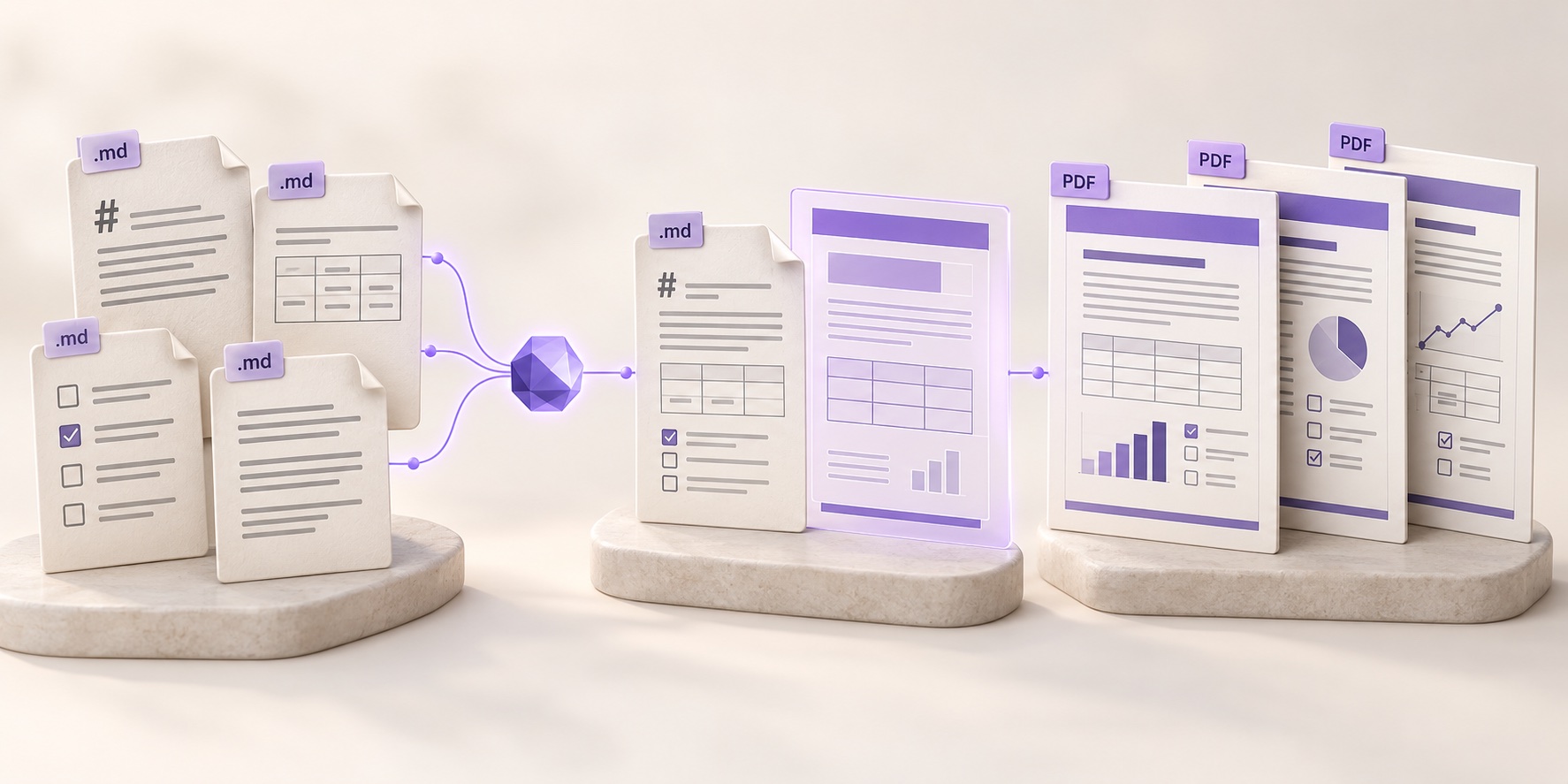
Ask your connected AI to work with the documents, records and project context it can read. Sources can have different formats and come from different parts of the shared workspace.
A template describes what to include, how to organize it and how it should look: sections, tone, tables, visual style or branding. Review and refine the result with your assistant.
The destination might be a document, an email, a spreadsheet or structured data. The principle is open-ended: the assistant and its connected tools need to be able to read the sources and create the chosen output.
The template describes the result, not necessarily a file format. Markdown to PDF is one useful route through a broader idea.
The service desk, seen through its results
The ticket workflow creates more than a queue of messages. It becomes a source for daily coordination, customer communication and learning from repeated issues.
The same records support each output. You do not have to compile a separate set of facts for every audience.
Use a structured overview for status and ownership. Ask the assistant for a short briefing on what needs attention.
Illustrative numbersThe assistant gathers relevant messages and actions into a clear update. Keep the prepared email or PDF with the ticket.
Bring together recurring issues, recorded outcomes and unresolved questions. Ask the assistant to propose improvements, with the underlying evidence in reach.
Repeat the structure, reuse the work
A template is a reusable set of instructions for content, form and appearance. It can describe the audience, required sections, evidence, tone, tables and visual style. MiddleGround keeps the template, source material and saved outputs with the work.
A project, customer or reporting period.
Extract facts, summarize activity and draft conclusions from the relevant sources.
Check the supporting material and turn agreed improvements into follow-up actions.
Create the chosen output and save it with the relevant work. Use the same instructions again as the sources change.
Build from your actual information
In the web app, open Reports and choose Build overview. Compose a shared Report from tables, cards, lists, details and Thing counts, using your Environment’s existing Views and fields.
Select a View containing the Things you want to inspect. Choose the fields, filters, sorting and formats that make the information useful.
See the result before saving. Click a Thing to explore its context while whole-View blocks retain the wider picture. Missing information remains missing.
Save the definition for your Environment. People see the results they have permission to read. An assistant can help prepare the same Report definition.
Illustrative setup · use your own fields
A service overview: choose your work View, show a list of open items and a Thing-count block, then add a detail block for the selected job. Filter on your existing status field instead of maintaining another spreadsheet of the same records.
The builder supports defined blocks and sources. Counts are not sums, and this is not a general app builder. Drafts are temporary until saved or exported; editing an existing definition in the visual workspace saves a new shared Report.
Keep the steps behind the result
Working documents change. Name the moments that matter and retain the earlier revisions behind them.
Give an artifact revision a label and optional note, such as “For review” or “Agreed scope”. Named revisions stand out in its history; ordinary autosaves continue alongside them.
Labels are your own names, not an enforced approval process.
View historical Markdown or retrieve an earlier file. Restoring creates a new revision of the same artifact, keeping its history. A restore does not silently reset the current version label.
When a generation workflow records provenance, its output can link to the exact source artifact, historical revision and version label used. The generated file remains its own artifact.
Source details can show that the source is unchanged, has later edits or has moved to a new named version. A changed source is a reason to review the output; it does not automatically replace or invalidate the file.
Example · a renovation brief
An uploaded file does not acquire source history from its filename. The workflow must explicitly record that relationship.
Ask your assistant for a summary, a set of extracts, a conclusion or an improvement list. The content can become a message, a document or input for another tool. Save the result with the relevant project and sources in MiddleGround, ready to review and build on.
See reporting in the use cases →A dashboard or saved Report presents structured workspace information. An assistant can also use that information to prepare an email, a presentation, a table or a document. Reporting is the wider workflow of turning sources into something useful.
Explore reports in the guide →We measure tab sessions, pages, visible time and approximate city/country for 90 days. No cookies or stored IP addresses. Temporary session storage expires after 30 minutes of inactivity or four hours. Do Not Track and Global Privacy Control disable measurement.