 MiddleGround
Shapes, labels and connections.
Use rectangles, ellipses, text, drawn paths and arrows. Arrows stay attached when you move their shapes. Change size and colours, pan around the canvas, zoom in or fit the whole board.
Shared Whiteboards
Sketch a first idea. Ask your assistant to help shape it. Refine the same board with the people involved, and keep it with the project.
See how it works ↓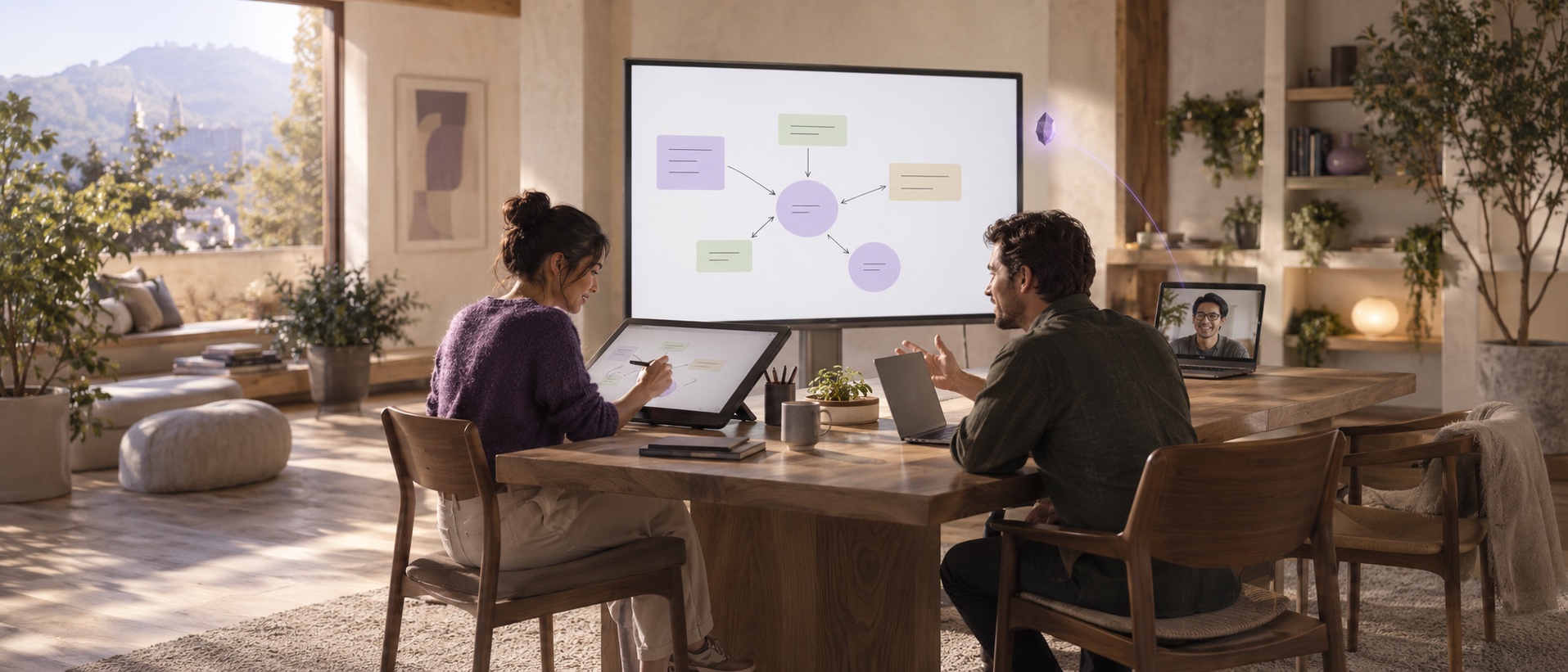
From a question to a shared picture
Imagine planning how a repair request moves through a small business. You know the work. Your assistant helps make the steps and open questions visible.
Open a Thing in the web app and choose + Whiteboard, or ask your connected assistant to create one. Add shapes, text and arrows.
“Make a board for how a repair request moves from intake to completion.”
Your assistant can read the saved board as an image and edit its objects. You and other authorized editors can move shapes, change labels and add connections in the web app.
“Add a customer approval step before we schedule the repair.”
The board is an artifact of the Thing. Reopen it for the next discussion, or start a new empty version while retaining earlier drawings in its history.
“Let’s keep this flow with the service process and refine it next time.”
Illustrative board content · not a screenshot
A simple addition can make an assumption visible. These shapes illustrate a conversation; they do not run or automate the repair process.
Enough structure to think clearly
Use rectangles, ellipses, text, drawn paths and arrows. Arrows stay attached when you move their shapes. Change size and colours, pan around the canvas, zoom in or fit the whole board.
Accepted edits update the board in connected web sessions. If a save fails or an edit needs attention, review it and retry or discard it. A viewer can read the board without editing it.
When asked to read it, the assistant receives an image of the saved board together with object information. It can work with the diagram as well as its editable structure.
The Whiteboard stays alongside the Thing’s other artifacts and context. Its version history keeps earlier work available, so a fresh drawing does not need to erase the previous idea.
Working with Whiteboards today
Create and edit boards in the MiddleGround web interface. Native macOS and iOS clients can preserve the artifact, but do not yet provide a Whiteboard editor. A local Mac Connector preview also needs the rendering workers for assistant image reads.
Ask your connected assistant to read or change the board. Moving an object does not automatically wake an inactive assistant. If two edits change the same field, a later accepted change can replace the earlier one; review important decisions together.
We measure tab sessions, pages, visible time and approximate city/country for 90 days. No cookies or stored IP addresses. Temporary session storage expires after 30 minutes of inactivity or four hours. Do Not Track and Global Privacy Control disable measurement.